How to enter a Navgame
Enter solo, create a team or join an existing team from the Navgame mobile app.
1. Open the event
The easiest route is to open the entry link or scan the QR code supplied by the organiser. You can also open Navgame and tap Play.
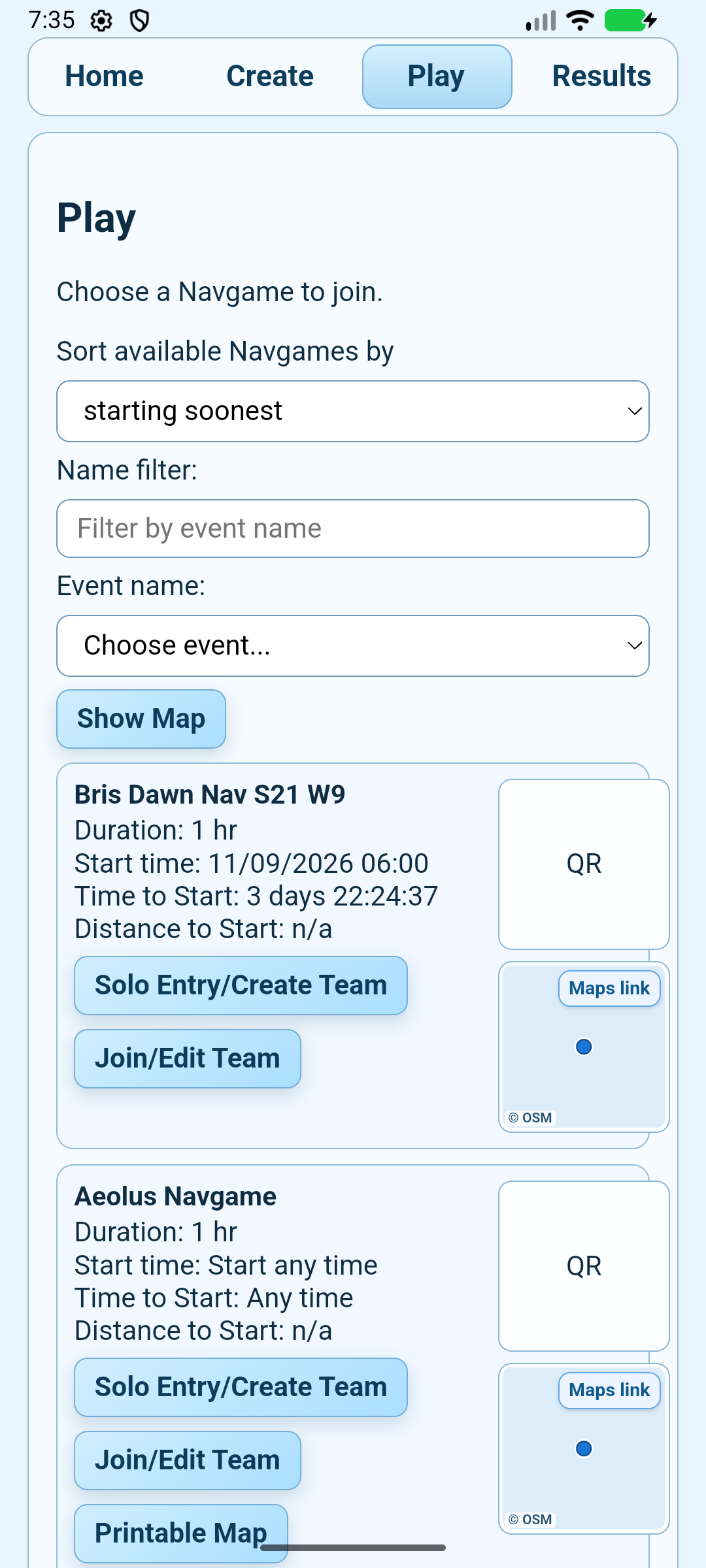
2. Find the right Navgame
- Use Name filter if you know part of the event name.
- Check the start time, duration and location on the event card.
- Tap Solo Entry/Create Team to make a new entry, or Join/Edit Team if a teammate or organiser has already created the team.
3. Complete the entry form
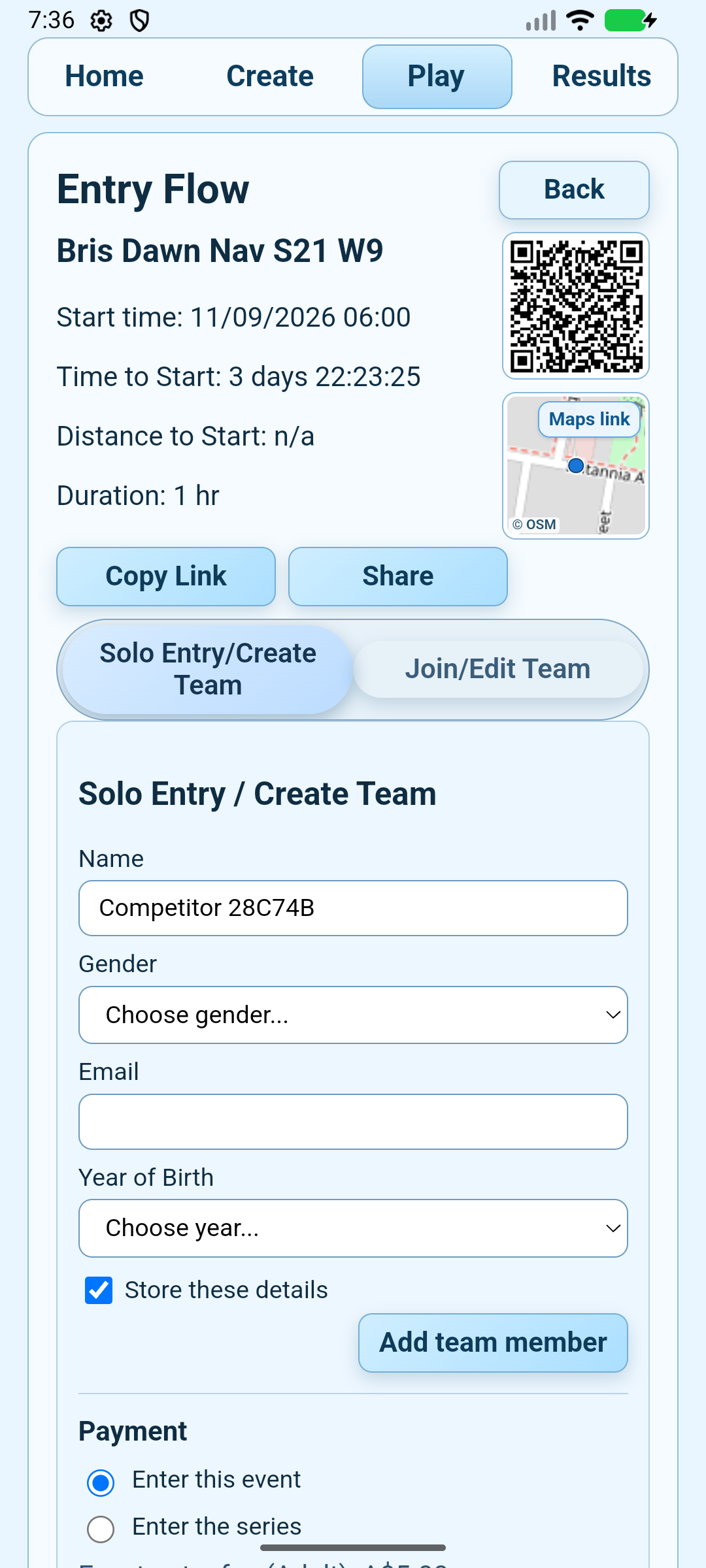
- Confirm the entry mode at the top of the form.
- Enter your name, gender, email address and year of birth. If the event allows teams, use Add team member when entering teammates together.
- Leave Store these details selected if you want the app to remember them on this phone.
- Tap Save Entry, or Proceed to Payment when the event charges an entry fee.
4. Prepare for the start
After the app confirms your entry, wait for the event data to finish downloading. Then use Start Event Mode on this Phone when you are ready to compete.
Important: do not rely on offline mode until the event download has completed. If you cannot find a private event, reopen the organiser’s entry link.