How to view results
Find the standings for a completed Navgame and replay routes on the map.
1. Open Results
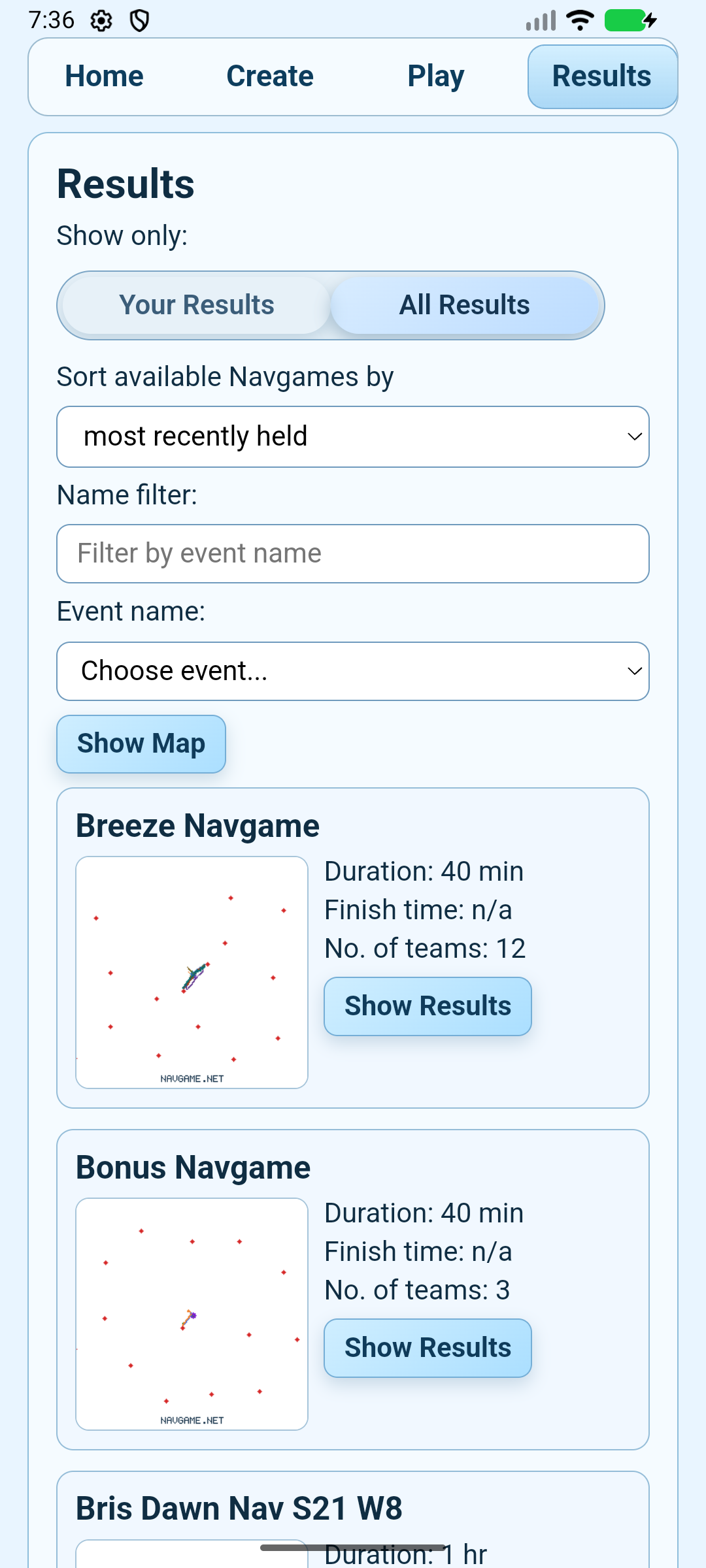
In the mobile app, tap Results at the top of the screen. Choose Your Results for events stored on this phone, or All Results to browse every published event.
2. Choose an event
- Sort by the most recently held or closest event.
- Use Name filter to narrow the list.
- Check the event name, duration and number of teams, then tap Show Results.
3. Read the standings
The results table includes position, team and competitor names, score, finish time, distance, category placings, route and checkpoints visited. On a small screen, swipe the table sideways to see the later columns. Use Filter by Category when you want a particular class.
4. Replay the event
Tap View Replay Map to watch routes over time. Select the teams you want to compare, then use play/pause, the speed control and the timeline slider.
Can’t see the results? The organiser may not have published them yet, or the event may require the private results link or password.