How to create a Navgame
Use Quick Start for an instant course, or build every event and map setting yourself.
Video Tutorial
Quick Start
Open Navgame on a computer and choose Create. The sentence-style generator builds a complete starting point with only a few choices.
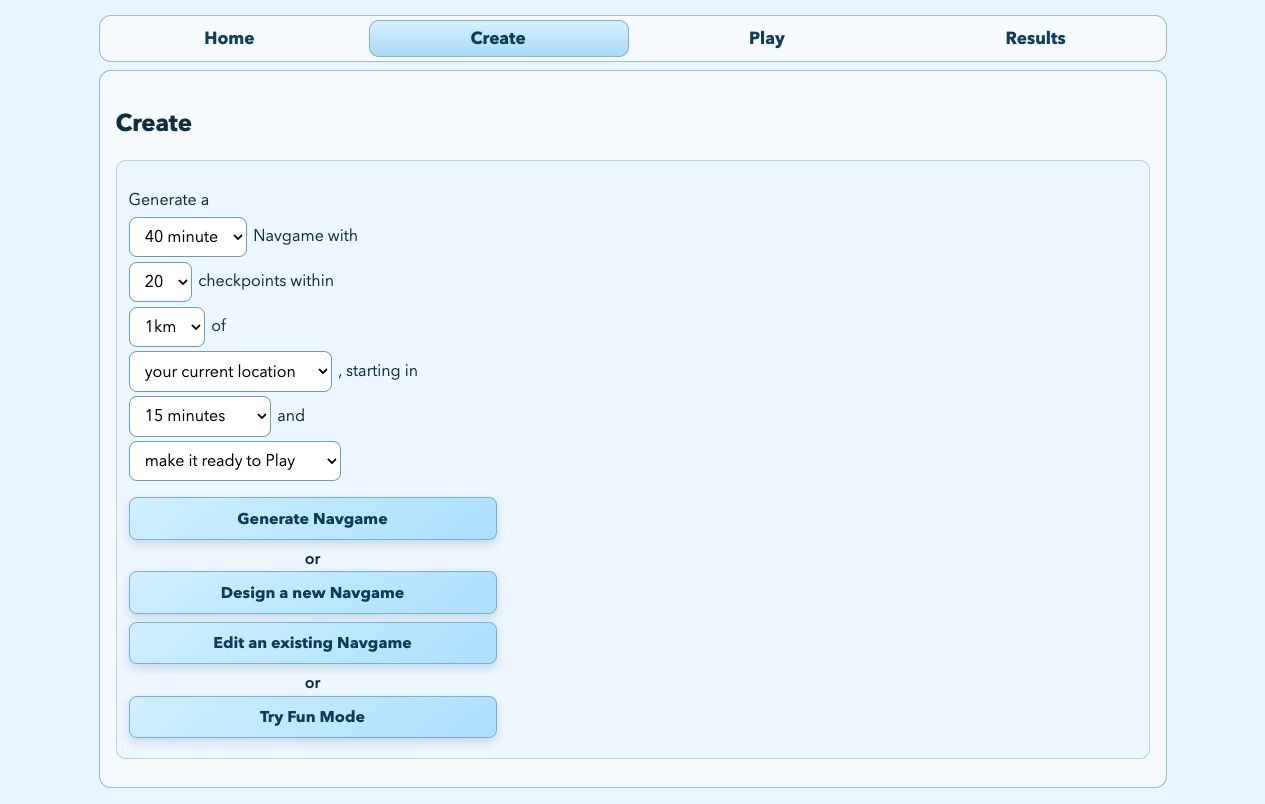
- Choose the course style: 20, 40 or 60 minutes, or linear.
- Choose the number of checkpoints and the radius around the current or a selected location.
- Choose when the event starts.
- Select go to editor if you want to review the course, or make ready to Play for the fastest setup.
- Click Generate Navgame. Review the event name, start location and checkpoints before sharing it.
Good practice: always inspect automatically generated checkpoint positions for safety, access and accuracy before publishing.
Create from scratch
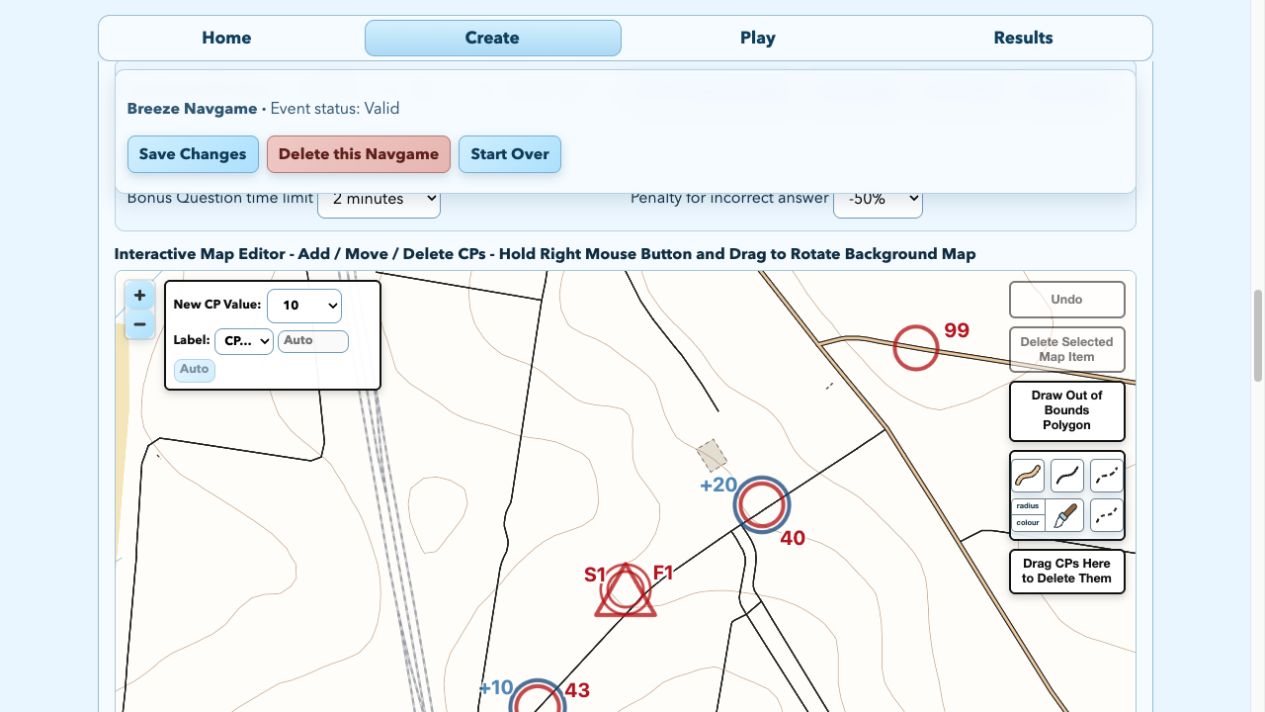
From Create, choose Design a new Navgame. Work through the editor from top to bottom:
- Event Settings: enter the event name and choose Score, Scatter or Line, availability and reveal times, fixed or flexible start, duration, late penalty and GPS radius.
- Course options: turn on live tracking if needed and add course, results or live-tracking passwords for a private event.
- Add checkpoints: click the map to add them, import a
.csvor.kmlfile, or use the autogenerator. A CSV can use the headercp,lat,lon,value. - Check the map: drag checkpoints to refine their locations; edit codes and values; remove anything unsuitable.
- Optional maps: add a background map, KMZ, GeoTIFF or GeoPDF overlay, and prepare a printable map if competitors need one.
- Test and publish: run the validation checks and Test Event tools, then choose Publish this Navgame. For later edits, use Save Changes.
Share the event
Use the editor’s Share Event area to copy the entry link or QR code. Send any course, results or live-tracking password separately to the people who need it.