How Event Mode works
Use Event Mode during a standard Navgame to reveal the course at the right time, record GPS checkpoints and finish with a result.
This guide is for standard events. Fun Mode events use different rules and screens.
Before you leave reception
- Open your confirmed entry and wait for Available Offline.
- Allow precise location access. Notifications are optional but useful for checkpoint confirmations and status updates.
- Charge the phone, turn off battery-saving restrictions for Navgame and keep Event Mode running during the event.
- Carry any safety equipment and printed map required by the organiser. Navgame does not replace event safety procedures.
1. Enter Event Mode
Open Play, choose your confirmed entry and tap Start Event Mode on this Phone. The event map fills the screen and the status panel shows your team, name, score, last checkpoint and timing information.
2. Fixed-start events
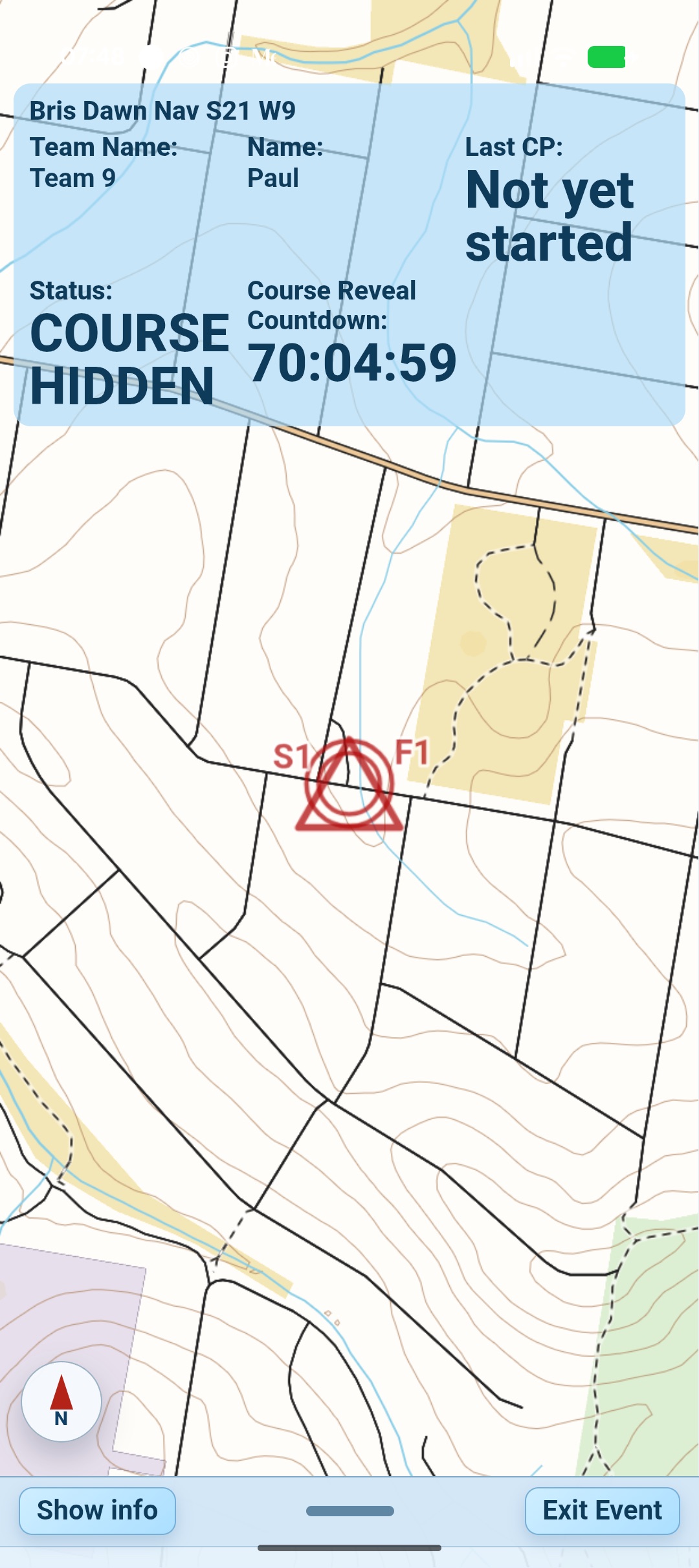
- Before the reveal time, the status is COURSE HIDDEN. You can see the start/finish but not the other checkpoints.
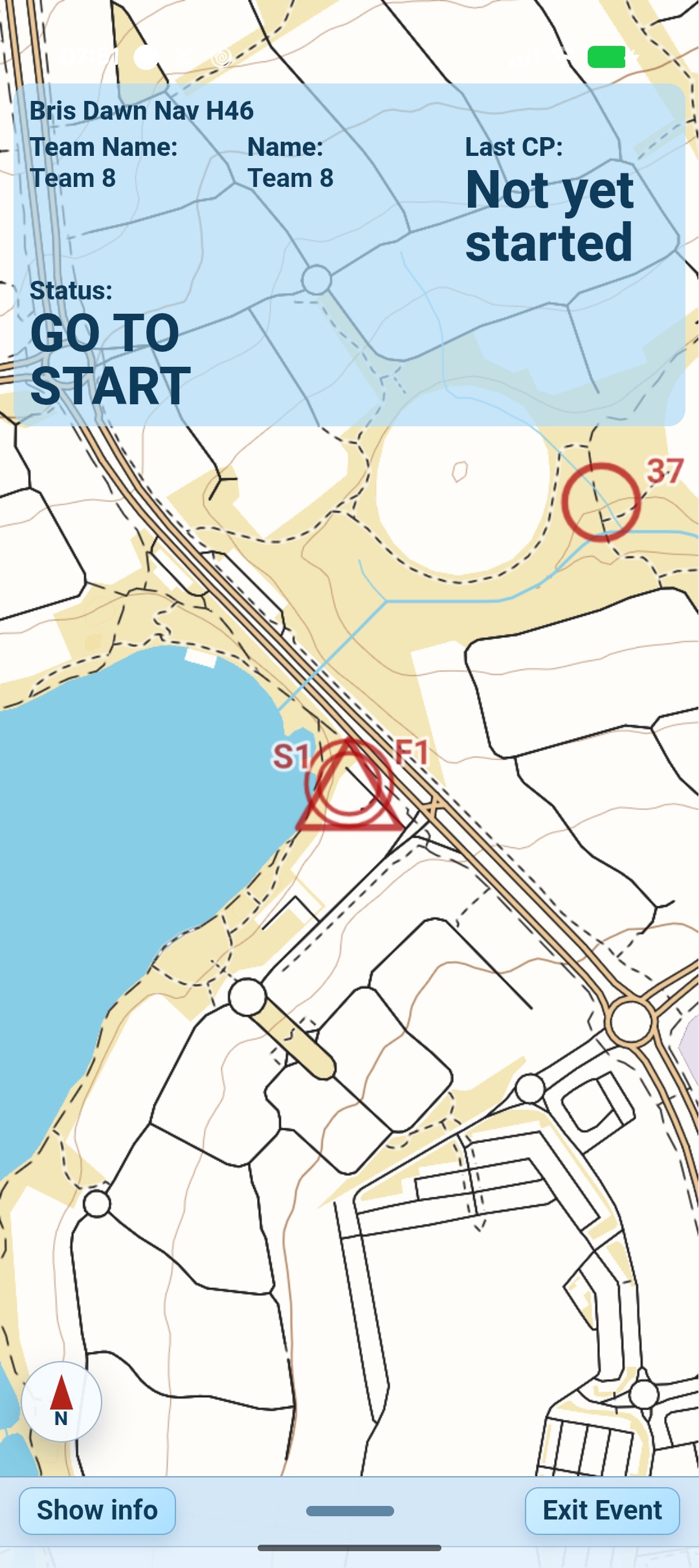
- When the reveal countdown reaches zero, the course appears and the status changes to GO TO START.
- Move within GPS range of S1 or HH. The app changes to READY FOR START and stays armed.
- At the advertised start time, Event Mode starts automatically and records the start checkpoint. Do not leave the start early.
3. Start-anytime events
- Once the course is available, the status shows GO TO START.
- Move within GPS range of S1 or HH. The app arms the start.
- Follow the on-screen start action. Your elapsed time resets to zero when the start is accepted, and you receive the full event duration.
- If the organiser enabled Start Anywhere, wait for a trusted GPS fix and tap Start Event. Navgame creates a start/finish pair at your current position.
Fixed start or start anytime?
| What happens | Fixed start | Start anytime |
|---|---|---|
| When timing begins | Automatically at the advertised start time | When your armed start is accepted |
| What to do at S1/HH | Arrive before the start and wait while armed | Arm the start, then follow the on-screen start action |
| Start Anywhere | Not used | Available only when the organiser enables it |
4. During the event
- Your blue location marker moves over the course map. Pan or zoom without leaving Event Mode.
- When Navgame accepts a checkpoint, the phone sounds or vibrates and Last CP updates. Optional notifications can also report checkpoint and status information.
- The app keeps collecting the event track while the screen is locked or Navgame is in the background, subject to the phone’s battery and permission settings. Force-stopping or rebooting the phone interrupts tracking.
- Tap Show info for event details. Use Exit Event only if you intend to stop; exiting before a finish produces no result.
5. Finish and open your result
Move within GPS range of F1 or HH. Choose Confirm Finish to stop timing and submit the result, or Keep Going if the finish was accidental. After confirmation, Navgame opens the result when it has been saved.
If a checkpoint does not register: stay near the mapped location with a clear view of the sky and wait for GPS accuracy to settle. Do not force-stop the app. Event officials can review genuine missing-checkpoint claims after the event.