How to use the Garmin watch app
Send a standard Navgame to your Garmin watch, compete from the watch and import the result back to your phone.
Before the event
- Install the Navgame Connect IQ app on a supported Garmin watch.
- Pair the watch in Garmin Connect and make sure Garmin Connect shows that watch as connected.
- Enter the event in the Navgame phone app and wait for the entry to show Available Offline.
- The organiser must allow Garmin watches for the event. Garmin is for standard events; events with bonus questions do not offer the watch transfer.
1. Send the event to the watch
- Open Garmin Connect and confirm the intended watch is connected.
- In Navgame, open the confirmed entry and tap Send to Garmin once.
- Open the Navgame app on the watch. It shows Downloading event data, followed by the event and team details.
- Wait for the phone to confirm the transfer before putting it away.
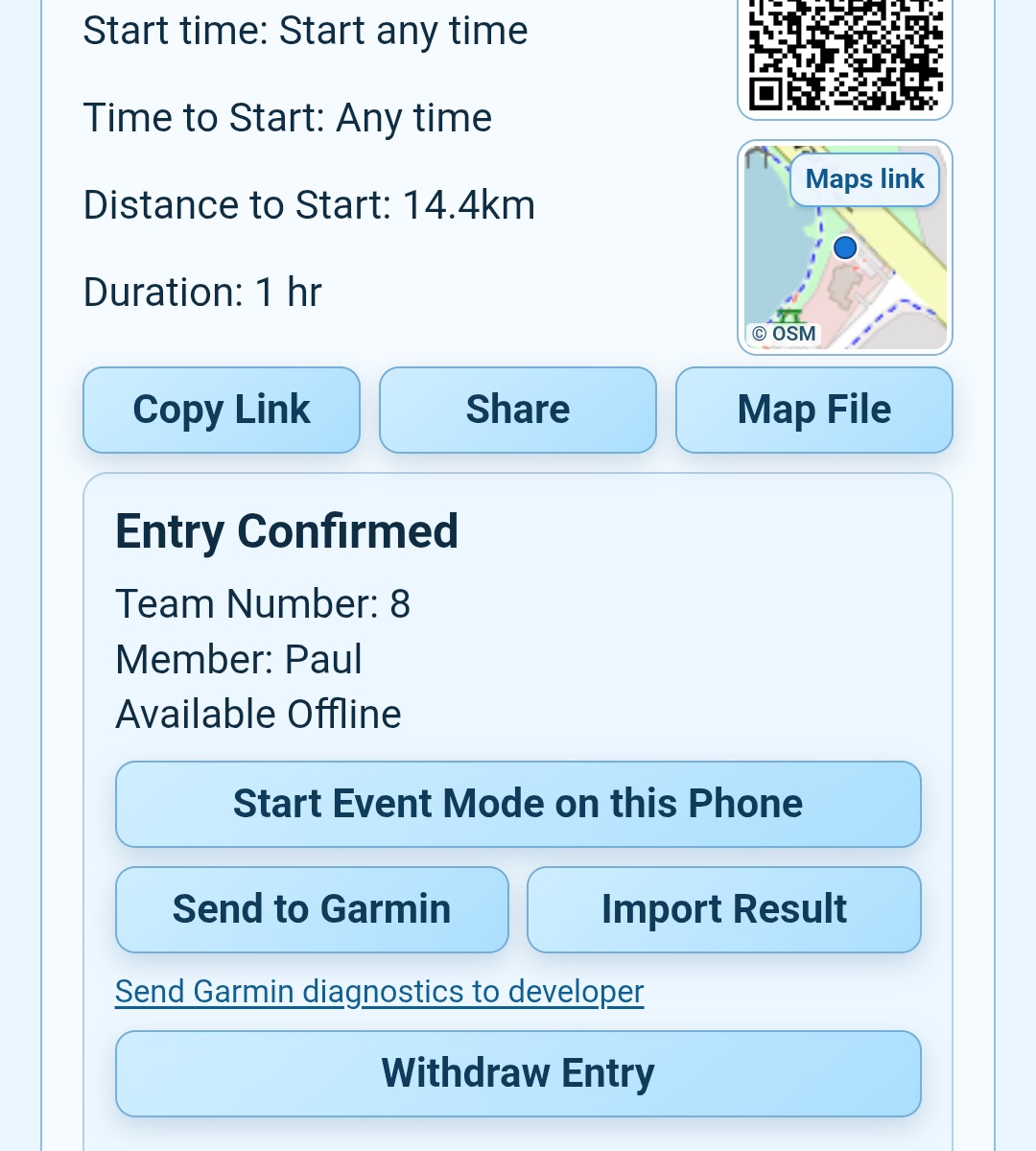
2. Get ready to start
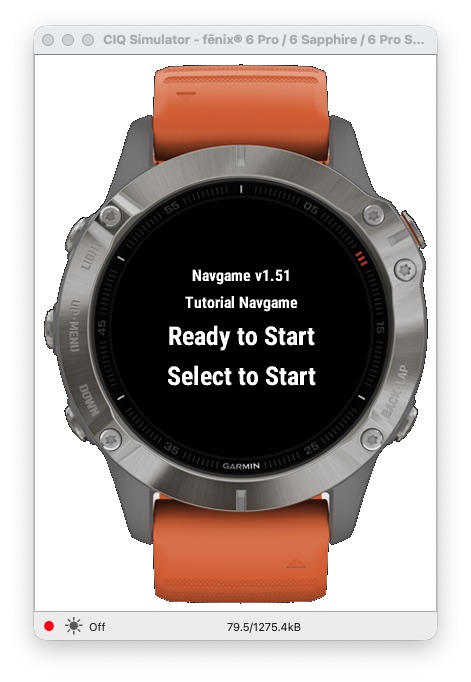
Go to S1 or HH. The watch shows Ready to Start when GPS has armed the start.
- Fixed-start event: remain at the start. The watch begins automatically at the advertised time and records the start.
- Start-anytime event: press the physical Select button while Ready to Start is displayed. Timing begins immediately.
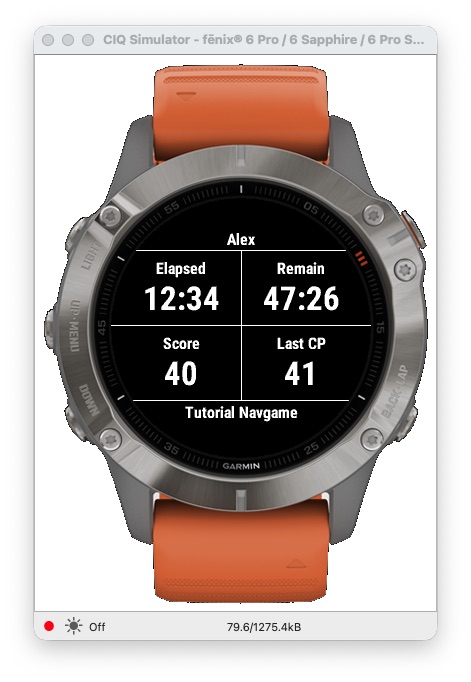
3. Compete from the watch
The primary screen shows Elapsed, Remain, Score and Last CP. When a checkpoint is accepted, the watch sounds or vibrates, briefly shows CP recorded and updates Last CP.
If the organiser enabled optional performance metrics and your app version supports them, use Up or Down to view distance, recent pace, climb and points per minute.
4. Finish on the watch
- Enter GPS range of F1 or HH.
- When the watch asks Finish?, press Select to confirm.
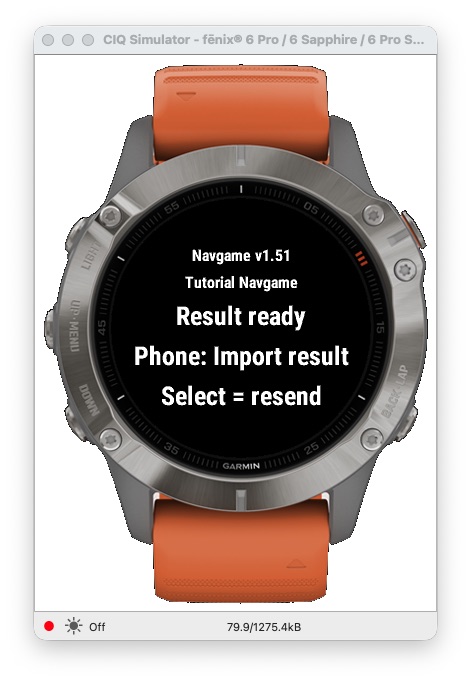
- Wait for Result ready. The Garmin activity is saved separately and can sync to Garmin Connect.
5. Import the result on your phone
- Keep Result ready on the watch. Bring Garmin Connect and Navgame to the foreground on the phone if needed.
- Open the same confirmed entry in Navgame and tap Import Result once.
- If the phone is waiting and the watch still shows Result ready, press Select on the watch to resend.
- Wait for Navgame to confirm the import and open the normal Results view.
Protect the result: do not tap Send to Garmin again, delete the watch app, reset event data or discard the result while an import is pending. Retry Import Result first. Use Send Garmin diagnostics to developer only when troubleshooting is needed.
Watch buttons at a glance
| Screen | Select | Back |
|---|---|---|
| Ready to Start | Starts a start-anytime event | Offers to delete event data |
| Active event | Confirms Finish when prompted | Offers to exit the event and save a partial Garmin activity |
| Result ready | Resends the result to the phone | Offers to discard the result |